
Adding Sources and Destinations
Every source and destination has a type dropdown when you add it — pick whichever matches your actual encoder, software, or hardware. This page walks through each one at a glance; for OBS and vMix specifically, see the dedicated step-by-step guides:
- OBS Setup Guide — pushing a source in, and receiving a return/destination feed (Media Source settings).
- vMix Setup Guide — receiving routed slots, and sending a return/program-out feed.
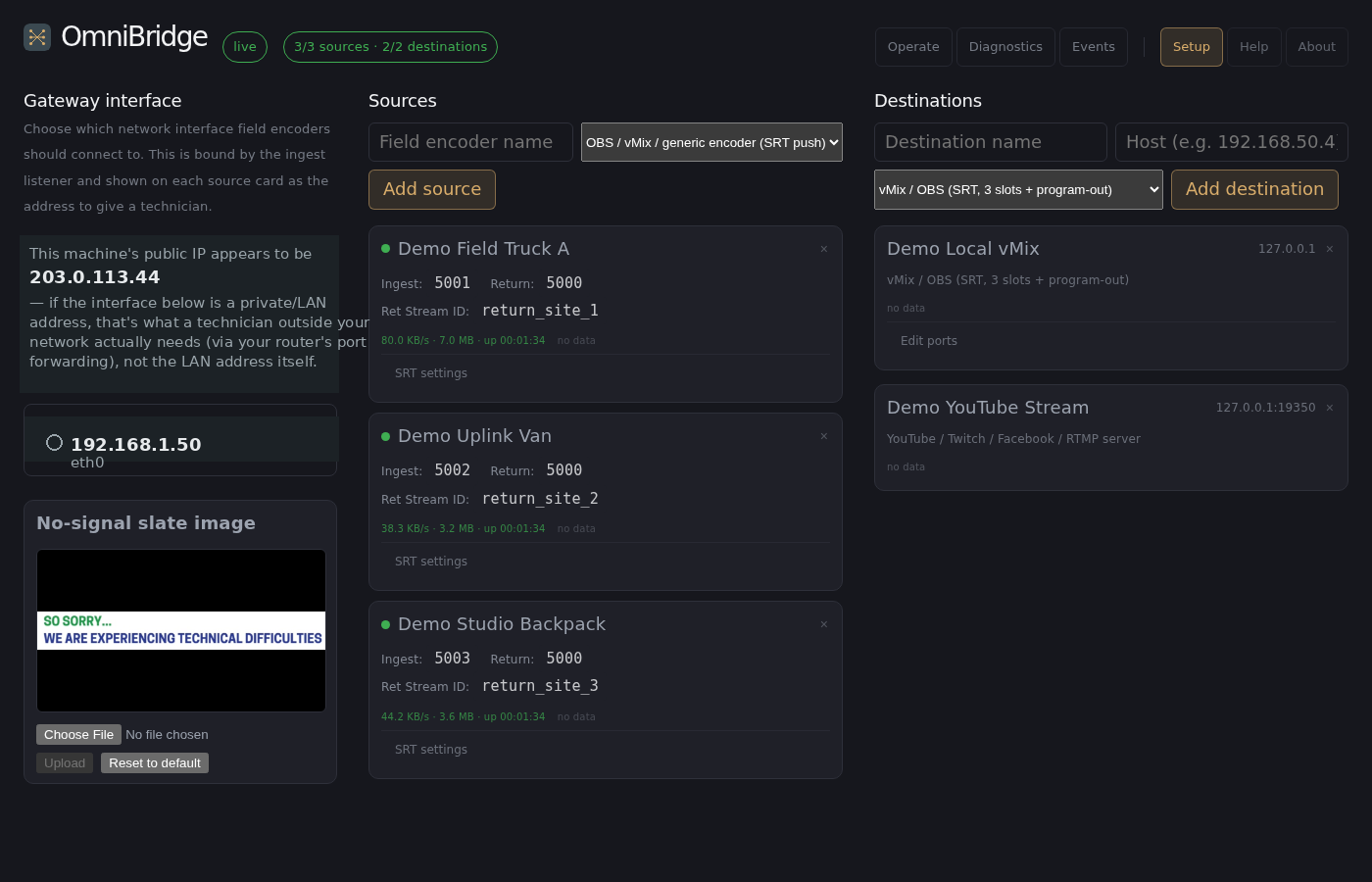
What the dashboard looks like
Adding a source or destination happens on the Setup tab, laid out in three columns: the gateway's own network interface/slate-image settings on the left, Sources in the middle, Destinations on the right. Each source/destination type is picked from a dropdown naming real hardware/apps, not raw protocol jargon. Every source and destination card shows a live traffic stat (bytes, uptime, bitrate) next to its status dot. SRT-protocol cards also have a toggle for overriding latency, passphrase, or port numbers — called SRT settings on a source's card, Edit ports on a destination's card (same idea, different name depending which side you're on):
Routing lives on its own Operate tab, sized to fill the actual browser window rather than a fixed layout. Every source and destination appears as a tile with a live-ish thumbnail and a color-coded status border (red/yellow/green, same meaning as the status dots described in Ports and Troubleshooting). Two different drags do two different things:
- Drag a source tile onto a destination tile to send that source's feed in — including single-feed destinations (Epiphan, a streaming platform, a RIST box), which route exactly the same drag-and-drop way as a 3-slot vMix/OBS destination.
- Drag a destination's header onto a source's return zone (the small strip below that source's own tile) to send that destination's program-out feed back to the source as a return/preview feed — a separate, optional step most sources never need.
Above the destinations grid, a tab bar reads All Destinations plus one tab per destination you've added. Switching to a specific destination's tab narrows the destinations grid down to just that one — sources are never filtered, so an operator on that tab still sees every source available to route. Hand that one tab to whoever's running that specific destination and they get a focused view of their own slots without the rest of the board; everyone else still defaults to All Destinations, the same full view as before this existed.
Adding a source (something pushing video in)
SRT and UDP MPEG-TS types are included with every license. Types marked as requiring an add-on need that add-on (or the Pro bundle) on your license.
On the Setup tab, click Add source, give it a name, and pick its type:
OBS / vMix / generic encoder (SRT push) — the default
Most cameras/encoders and OBS itself default to this. In your encoder's SRT output settings:
- Server / URL:
srt://<gateway-public-ip>:<port> - The port is shown on the source's card once it's created (
5000 +its position number — e.g. the first source added is port5001). - No stream ID, no passphrase, no special latency setting needed by default — the gateway accepts any SRT connection on that port unconditionally.
- Optional: click SRT settings on the source's card to override the gateway's default latency (120ms) or require a passphrase for this specific source — useful for a picky encoder, or if you want to lock down who can push to this source's port. If you set one, your encoder's SRT output needs the matching passphrase or it'll be refused.
- Leave your encoder on its default caller mode. The gateway is always the listener for sources.
See the OBS Setup Guide for the exact OBS dialog.
OBS / generic encoder (RTMP push)
Requires the RTMP add-on.
Same idea, but RTMP instead of SRT:
- Server:
rtmp://<gateway-public-ip>:<port> - Stream key / path: shown right on the source's card once it's
created (e.g.
live/site-3) — copy it exactly, a mismatched path is silently rejected.
Hardware encoder (UDP MPEG-TS)
For encoders that only speak raw UDP-TS (no SRT/RTMP option) — common on some older or embedded hardware:
- Point the encoder's UDP output at
<gateway-public-ip>:<port>(unicast, not multicast). - There's no handshake or connection state with plain UDP, so the status dot here reflects "packets arriving in the last couple seconds," not a true connected/disconnected signal.
RIST-capable encoder
Requires the RIST add-on.
- Point the encoder's RIST output (caller mode, not listener) at
rist://<gateway-public-ip>:<port>. - The gateway is the RIST listener, matching every other source type — your encoder should always be the one calling in.
NDI source
Requires the NDI add-on. The gateway must be on the same local network as the NDI devices; see the NDI Setup Guide.
Different from every other source type — nothing to point at an IP/port. Pick NDI as the type and the gateway shows a live, auto-refreshing list of NDI sources it can already see on the local network (same subnet as the gateway); pick yours from that list. If your source doesn't show up, it's a network-discovery issue (multicast/ mDNS reachability between the two machines), not a gateway setting.
Adding a destination (where video goes out to)
On the Setup tab, click Add destination, give it a name and host/IP, and pick its type.
vMix / OBS (SRT, 3 slots + program-out) — the default
The original vMix-shaped destination: 3 input slots you drag sources onto, plus a program-out feed you can route back to the field or into another destination. See the vMix Setup Guide or OBS Setup Guide for exact steps.
- The gateway always dials out to your destination — nothing needs an inbound firewall rule from the internet, only from the gateway on your local network.
- Two destinations on the same physical box (e.g. OBS and vMix both
running on one PC) will collide on the shared program-out port
(
14000). That port is fixed and can't be changed, so run the second instance on a different host or VM, or use program-out from only one of the two.
Epiphan / hardware decoder (UDP MPEG-TS)
A single-feed destination — create it here on Setup, then go to Operate and drag a source (a source tile, or another destination's program-out tile) onto it; the gateway sends whatever's routed there straight out as UDP-TS:
- Set the destination's port to whatever your decoder box is configured to listen on.
- Point the decoder's own UDP input at this gateway's IP and that same port.
YouTube / Twitch / Facebook / RTMP server
Requires the RTMP add-on.
- Host: the platform's actual RTMP ingest server (e.g. YouTube's is
typically
a.rtmp.youtube.com, port1935) — check your platform's own streaming dashboard for the current value. - App/stream path: the platform's stream key, exactly as shown in its dashboard (this goes in the "App/stream path" field when adding the destination).
- On the Operate tab, drag the source feeding this destination onto its tile.
RIST decoder appliance
Requires the RIST add-on.
- Set the destination's port to whatever your RIST decoder is listening on, and make sure the decoder is in listener mode — the gateway always calls out as the RIST client here, same direction as every other destination.
NDI destination
Requires the NDI add-on. The gateway must be on the same local network as the NDI devices; see the NDI Setup Guide.
Single-feed, like Epiphan — no slots, and no port to configure at all.
Give it an NDI output name (e.g. Program Out) instead; the gateway
advertises that name on the local NDI network, and any NDI receiver on
the same network (vMix, OBS with the NDI plugin, a hardware NDI
decoder) can pick it up by name, same as picking up any other NDI
source.
What a destination sees when idle
A destination slot you've never patched anything into stays blank — that's your own explicit choice, and it never changes on its own.
A slot that is routed but goes idle (the source it's fed from drops, or hasn't started sending yet) is different: after 5 seconds with nothing real arriving, the gateway automatically substitutes a "STANDBY" slate image instead of leaving that input dark — and switches back the instant real content resumes, no action needed. This is the same mechanism that shows a slate on a source's return feed; see No-signal slate in Ports and Troubleshooting for the full explanation, including how to replace the slate image itself.
A note on reroutes
Changing what feeds a vMix/OBS or UDP-TS destination takes effect instantly with no interruption — that's a live, in-process switch.
Changing what feeds an RTMP, RIST, or NDI destination causes a brief real interruption (a second or two) — all three are bridged through an external tool (or, for NDI, a decode step) that has to restart to pick up a new source. Expect a short glitch on that specific output when you reroute it, even though everything else keeps running normally.